11 Jun
   Filed Under: Apple   

The new Apple Leopard page lists a specific tab under “Technology” about security. Some interesting points are there, and I must say, some promising developments on this front.

We’ve seen the sandbox daemon in the Leopard preview builds, but while I pointed out that there were some default services running that were subject to exploitation, it seems Leopard will have some protection to these ‘problems’. From the Apple site:

Helper applications in Leopard — including the network time daemon and the Spotlight indexer — are sandboxed to guard against attackers.

Now that’s a good improvement. But there’s more.


“…files downloaded using Safari, Mail, and iChat are screened to determine if they contain applications. If they do, Leopard alerts you, then warns you the first time you open one.”

There’s one less avenue for malicious content being automatically opened. Given the track record of Mac users buying the upgrade of their favorite OS, we’ll see a lot more secure population in October. But wait, there is, indeed, one more thing.

“Leopard can use digital signatures to verify that an application hasn’t been changed since it was created.”

Why of course it can! After all, didn’t it use ZFS? Which does has the ability to checksum everything. We can also use Filevault, which isn’t really discussed on the Apple site, but uses a new encryption scheme, of which details are unknown at the time of writing. Fortunately;

“The Disk Utility tool in Leopard helps you create encrypted disk images using 128-bit or even stronger 256-bit AES encryption.”

And Apple Mail already supports signing certificates and authorities. This is getting a great OS for using the many facilities of securing your digital life. Strong new encryption possibilities are great. On Apple’s security page, they underline their commitment to keeping the kernel open-source, which, in my opinion, is also a critical part of the security and integrity of OS X.

That was it for now. If some of my fellow developers come back, I’ll have the penetration tests on the beta ready for everyone.

11 Jun
   Filed Under: Apple   

I must say, that’s been a huge disappointment. So far, I have complained over every occurrence of the new standard at Apple to make UI captions in capital letters (see the iTunes sidebar), and some hardware trouble, but this is just insane.

I hope Steve is making a joke when he said that they had figured out a ‘sweet solution’ to development on the iPhone. It’s quite clear that making AJAX apps isn’t a solution at all. I’m extremely, extremely disappointed to hear that Apple is panicing so far as to deny even widgets to run on the iPhone (although we don’t know all it’s features yet, they’d probably say Dashcode is the IDE to go if that was the case). Obviously, the device will get hacked one way or another – but what do you think? Steve Jobs has just disappointed all developers on the starting keynote of the whole WWDC. Great job, I think that’s a first.

Think of everything we could have done; multi-touch image editors, interactive games, the most cool stuff you can imagine on the new multi-touch platform won’t become reality. We’ll have to rely on just Apple for the creation of apps.

31 May
   Filed Under: Apple, Design   

Looking back, the Iconfactory’s post on resolution-independence has some holes in it (and looking back now, this post has too – see the end of the post and the comments).

Why, you ask? They claimed that PDF’s in the user interface as a new format instead of the current TIFF files, the entire OS would come to a screeching halt, that icons would go beyond megabyte sizes and general mayhem would throw all resolution-independence craving Mac users into a purgatory. We knew different then, we know different now. A few months back, I posted about the ‘new’ Oxygen icon suite for KDE, being all SVG-vector based, and it didn’t wipe Linux off the face of the Earth. Instead, some optimized SVG files and rendering tricks made it work quite good, and these days, some ‘dock’-applications for GNU/Linux put the SVG’s to good use.

You can test this kind of stuff on OS X too, you know. First of all, as we all know from the rather public Resolution Independence segment of the “Leopard Features in Cocoa” session, free on the ADC Online iTunes page that we can define image resources of varying DPI values. You’d have the same size images if you open them in, say, Preview, but once zoomed in, it’s obvious that one contains four times as much pixel data. Assume that drawing units (points) are independent of screen pixels – if you take a 100*100 point image with 72 DPI, it’s 100*100 pixels. if you take a 100×100 image with 288 dpi, you get 400*400 pixels, but this 288 DPI image isn’t ‘larger’ on-screen; it would be as large as the 72 DPI image on a 288 DPI screen.

But you can be more flexible with vector resources. Now, I wouldn’t really use my own icons in vector format, because it -would- put the OS to a screeching halt, but we all know that there is no plan to make the Dock icons vector – instead, we are simply putting 512 pixel icon resources in all new ICNS files to keep the scaling possible. Toolbar icons, on the other hand, are often very simplified graphics. Take the GNOME Tango icon set’s trash icon as an example;

Unify-icon-elements.png

As you can see on the right, this SVG icon has a 72 dpi version in which the dark outline is exactly one pixel wide – we could compare this to toolbar icons, which generally have the same characteristics. One pixel-outlines, and often a lot of pixel-art to get it all looking proper in the 32*32 pixel space. No more! In OS X 10.5, we can do it the Tango way. It takes two to Tango, doesn’t it? In our case, one PDF vector resource (we don’t generally use SVG’s, OS X has a PDF graphics subsystem with Quartz) and either include a DPI-ready vector resource in the PDF (one that has a 1 pixel border on 72 DPI, for instance), or a separate file (a multi-representation TIFF) that is used with a little bit of Cocoa’s help. Apple has been kind enough to give you something to grab the screen’s DPI value and thus, do something with that. In the session, a solution like this was suggested;

NSImage (pointer) Name=Imagename Size={100,100} Reps=(
  NSBitmapImageRep (pointer) Size={100,100} Pixels=100x100
  NSBitmapImageRep (pointer) Size={100,100} Pixels=400x400
)

Of course, assumed here is that we are talking about our earlier resources; one 72-dpi 100*100 pixel image, and a 288 dpi 400*400 pixel image get put in place conditionally. Cocoa will chose the resource accordingly. If we can, however, we should use vector resources. They won’t ever give problems because they scale with our interface – you can set the PDF as the icon resource and as the workspace scale factor gets higher, the graphic scales accordingly and loss-less. I hear you say that perhaps, some high-end systems with high scale factors are able to render vector graphics of increased complexity without too much strain, and all systems with a smaller scale factor (I assume laptops and low-end desktop systems) don’t really want to render out vector graphics because they are both hard to parallelize and take battery life in the case of portables. Although there is an argument that rendering out vector resources smaller is faster anyway, representing vector graphics still is a lot more intensive than just displaying bitmap data. Perhaps an if switch is needed?

- (CGFloat)userSpaceScaleFactor;

This method returns the workspace’s scale factor and lets you act on it accordingly. It’s simple to set up this method and make a switch of resources (I will leave that as an exercise to anyone who has a ‘Leopard to build on’). Afraid this might make your application bigger? I wouldn’t worry about this too much. If you would upgrade your toolbar to this dual-resource system, all your 32*32 resources wouldn’t need the 128*128 resources, whereas the vector resources included are generally smaller than any bitmap data. It’s a small price to pay for a better looking app. Now go forth, and make sure I see some both efficient, pretty, and resolution-independence ready apps soon! If you need help, you can get information about my services at icondesigner.net.

Edit: Craig Hockeberry of the Iconfactory has commented on the whole matter, and after a bit of chatting I agree that it is overboard for an interface designer to talk about these matters of switching resources – however, it was meant in a ways of throwing around idea’s. I must say that I was wrong in a few other points; vector in PDF cannot yet be seen as a medium for all toolbar icons because it’s not efficient enough. I’d like to thank Craig for all the input.

29 May
   Filed Under: Apple   

Before I am going to spill the bad beans, some positive vibes. I am going to a nice festival in August here in the Netherlands. I can finally see some musicians I have been dying to see live for a long time. One of them being the inspiring ‘math metal’ band Tool, but others like Trentemoller and Ojos de Brujo are some performances I really look forward to. Lowlands, as it’s called, is a very laid-back festival with an excellent atmosphere. I can recommend it to anyone who wants to enjoy Dutch people at their best.

In the mean time, I’ve had some big ‘fun’ with Praetorian. Upon discovering the HIG guide that no interface element should use over 75% black, I am in a dilemma. I like the current GUI but obviously does not adhere to the standards – while I like it and it’s discerning, it could definately hinder it’s long-term potential and become too ‘gimmicky’. I could, without really taking it’s flair and charm away, bring it to the 75% black standard. I think, looking forward, that this will probably make the beta date slip. There have been some rather insane keychain issues with the last builds that have almost made me throw the Macbook Pro out of the window.

Now, for the bad apples.

I lost a ton of work because the Macbook Pro’s battery I am using for almost ten months decided to go die on me spontaneously. It’s a painful moment. My first iPod’s battery died. My first Macbook Pro’s battery got hot to the point of melting the trackpad, bending the case, and generally screwing up the whole thing. I turned it in and it got shipped to Cupertino overnight. Nice going, Apple. After three months of bargaining (I -really- wasn’t waiting for some Customer Relations jerk that wanted to give me one from the same serial number range when there were faster and Rev. D machines in stores for less money) I got a new Macbook Pro. Now, yeah, it died on me. Again. Not to mention my girlfriend’s Macbook, which also had a battery that ‘just died’. Perhaps that should be the new Apple slogan. “It just dies”.

“Whoa, what’s up with the Apple hating?”, I hear you scream. I don’t. I love the platform, I adore the developers of the software. I don’t like Apple for putting out stuff before it’s really finished and it breaking on, well, a lot of people. Stop calling it ‘Pro’ if I can’t build on it. I lost a lot of work (slash time, slash money) on these hardware defects. Last time, I lost my work station for months.

Now, I hope I can get this thing fixed. I will have to get a battery soon, in the next few days, but after a few weeks, when I got my term finished, I will turn in my Macbook Pro for having paint coming off, a defective superdrive and some other minor issues. I hope that my saga ends after that, although with my luck, I doubt it…

13 May
   Filed Under: Apple   

Since it has been a bit silent on the security side of the blog lately, I have been working on some additions that are in line with the original nature of the blog. This week an interview with Johannes Tiefenbrunner, developer at Obdev in Austria, known for the premier Mac firewalling program Little Snitch, that protects you against potential trojans, outgoing connections (applications phoning home) and lately, even code injection. Obdev is also known for Launchbar, a very popular launcher application for OS X.
So, here’s the interview, in which I ask them about those cool features like code injection prevention, the future and past of Little Snitch (like Leopard) and even it’s icon. We also touch on OS X as a secure platform and it’s future.

1. Cocoia: Hello! You’re the developers behind the widely used security program for the Mac, Little Snitch. Could you tell a bit about your company?

Obdev: We kind of stepped into the Mac area via the side door: We’ve been developing software for the NeXT platform – e.g. LaunchBar actually started on the NeXT. When NeXT and Apple joined and the NeXT (OpenStep) technology became “Cocoa”, we were able to use our rich experience for the Mac.

We also develop for other *nix based platforms – our SMB network client Sharity supports several *nix flavors and our WebCMS WebYep, being PHP based, is cross platform anyway.

But we definitely can say that developing for the Mac is incomparably more joyful ;-).

2. Cocoia: Little Snitch has been among us for quite some while. What was the initial impulse to begin development on Little Snitch? How old is it now, exactly?

Obdev: The first version of Little Snitch was released in February 2003.

The idea of such application came up when we installed a new version of a well known application from one of the big software companies. There were rumors that this new version phones home, but nobody had definitive information since ordinary users weren’t able to verify this at that time. Curious as we are, we dove down into the Unix level of Mac OS X and by running some network sniffing tools found that the rumors were true.

We did not like the idea that any application can send data anywhere without our knowledge. The user should be informed and be able to decide. That’s why we created Little Snitch.

3.Cocoia: Have there been specifically hard points for you, like OS transitions and uneasy development challenges?

Obdev: Every Mac OS transition has the potential of requiring severe redesigns of Little Snitch – working in close contact with the lower levels of the operating system results in a greater dependency to that system’s implementation details.

But on the other hand this also makes it more challenging than the “usual” Mac OS application. Covering the whole area, from the kernel level up to the GUI, makes Little Snitch a very interesting project.

4. Cocoia: I have noticed that the latest versions of Little Snitch have improved protection from other, slightly related security issues like code injection. That’s quite a feat. What prompted the addition of this feature, and do you plan more extensive features like this in Little Snitch for the future versions?

Obdev: We have no plans to make Little Snitch into an “all-round security tool” with virus scanner, malware detection, firewall etc. – these things are not Little Snitch’s job. But whenever Little Snitch itself is endangered by some security problem, like it was by the code injection issue, we will protect it.

5. Cocoia: Little Snitch’s icon has had some criticism by bloggers and commenters on websites alike. What are your thoughts on this?

Obdev: To be honest: This is totally new to us. We actually have seen very positive response to Little Snitch’s icon – like on Starry Hope.
But this of course is a subject of taste. We currently do not have any plans to change the icon, but the upcoming Little Snitch 2 (currently in closed beta) will include improvements also on the visual side as well as in usability and functionality.

6. Cocoia: Is there a special version of Little Snitch for Leopard in the works? Is there anything you can divulge about this?

Obdev: With every new pre-release build of Leopard we adapt the current beta of Little Snitch 2. When Leopard is officially released, we will have a compatible version ready.

7. Cocoia: What are your thoughts, as a developer of premier security software for the Mac, as OS X’s security status? Do you think the future is grim, or do you have faith in the strength of a well-designed OS?

Obdev: We think that with Mac OS X Apple has a very good chance to offer the best and also most secure desktop operating system available. As always, there’s room for improvement, but beside other advantages, Apple has one big pro: They always had the guts to redesign core parts of their OS whenever they found a better solution instead of clubfooted dragging old designs into new OS version just for the sake of compatibility.

8. Cocoia: All right, thanks for the interview!

Obdev: Our pleasure – good bye!

I want to thank Johannes for this great interview and taking the time for having it.

comments off
23 Apr
   Filed Under: Apple   

Man, I really enjoy this.

It’s a very old app (supposedly by the Apple OpenGL team) that emulates those hyper-old phosphorous displays. It takes a whopping 30-40% of CPU, has configurable settings, and well, as I said, looks very cool. This is with 1800 baud modem emulation, it can run at regular speed as well.

Anyway, I have lots of fun in the Terminal. From telnetting towel.blinkenlights.nl, playing an old game of nethack, just having good old shellscripting fun, I love my terminal. There are some things, though, that I cannot live without when I get my hands on a ‘standard’ OS X terminal. Here are my additions.

Visor.

visorlarge.pngNumber one by far. It allows you to have a drop-down or fade-in terminal at a keystroke. I won’t have to explain why this is just super handy. It’s by the folks who made Quicksilver.
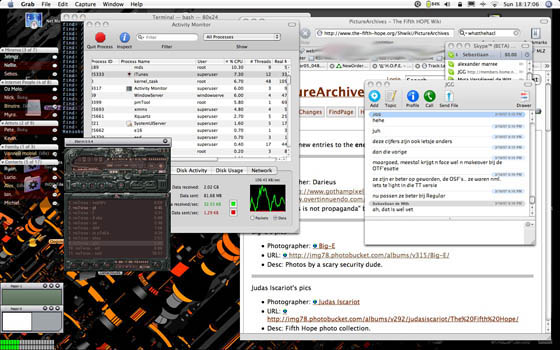
X11

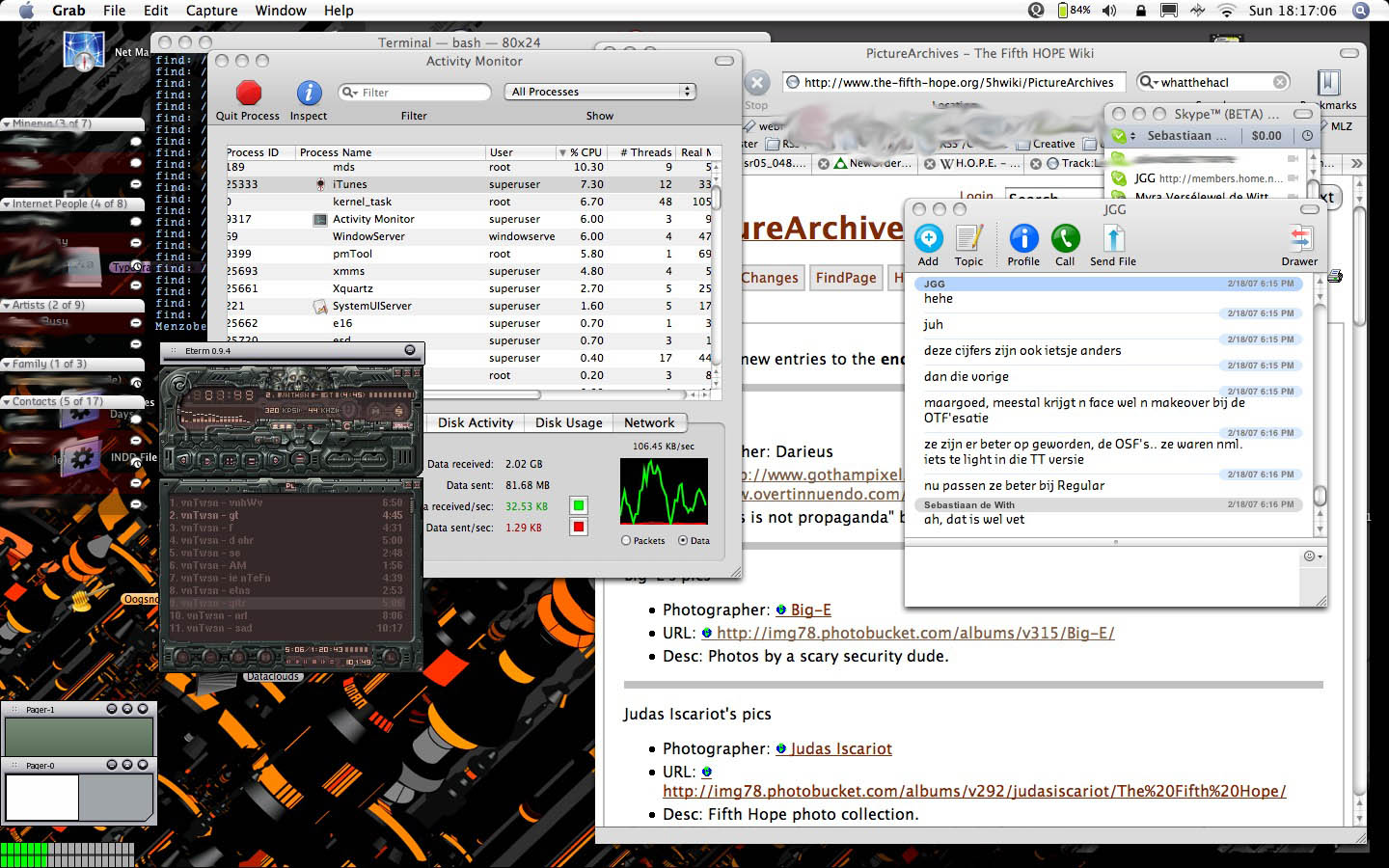
X11 is a great addition to any Terminal lover. Terminal prompt themes like bashish and other fancy Linux-esque graphic addition to terminals often work properly with Xterm or Rxvt and only that. Or you might want to use Eterm, like I do – Enlightenment is really one of my favorite window-managers on Linux or BSD, and it works great with OS X. It’s on the Install DVD that came with your Mac, in the ‘Optional Installs’ folder. Why install it, you ask?
eterm.jpg
(click for full size)

This particular setup lets me use my favorite old Winamp skins, lets terminals slide into a simple bar that you can ‘unslide’ by scrolling over the window (sounds complicated, but it’s super smooth)

Although GNU Screen comes standard, it deserves a mention. It’s like a window manager in a terminal. It allows for split screens, virtual terminals, and detachable screens. Check it out; type ‘man screen’ in the Terminal. Memorize the shortcuts and get rolling!


